


How to Fix Mobile Browser Geolocation Errors Instantly
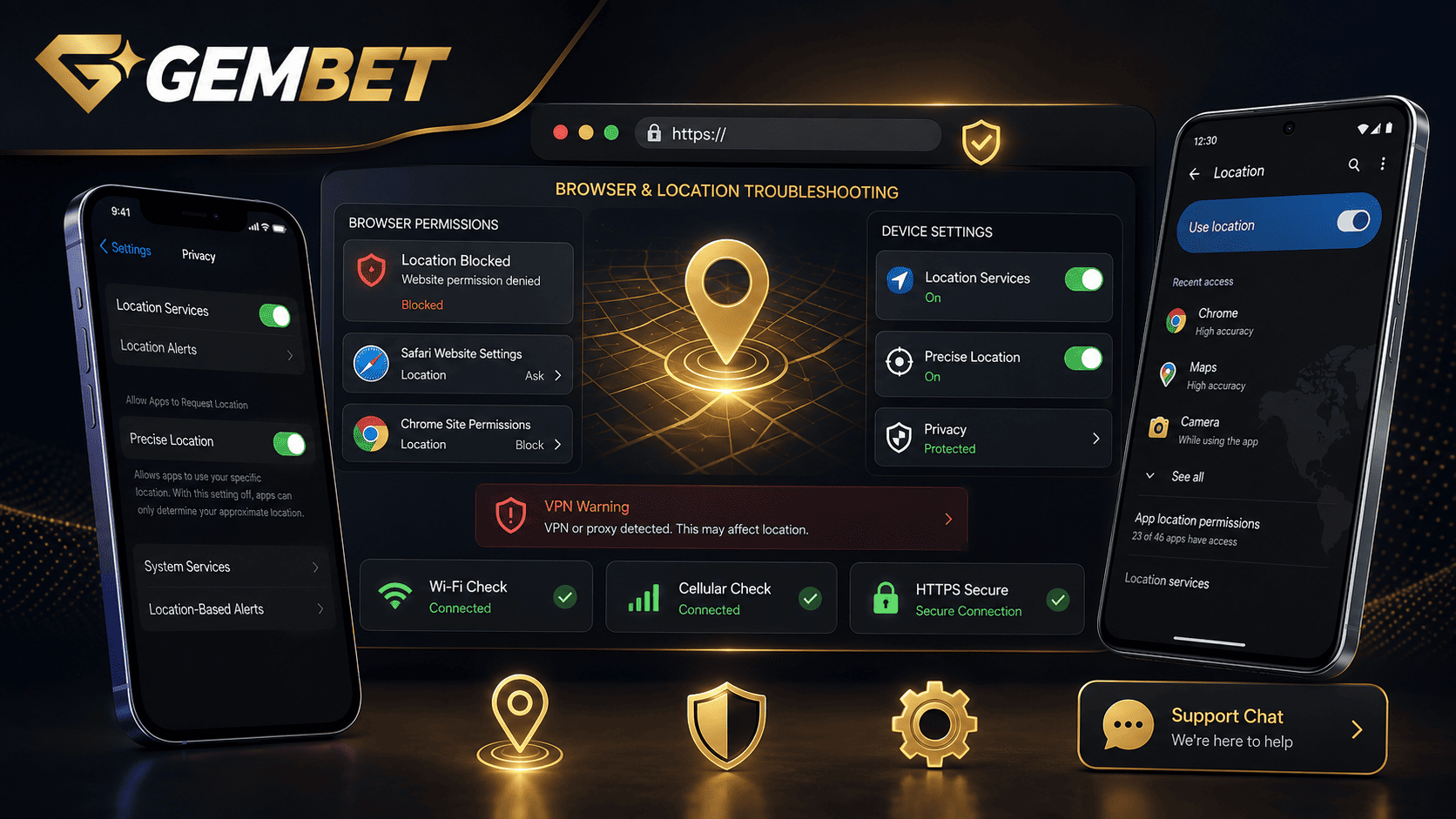
A browser geolocation error appears when a website cannot obtain the position data it needs or when the device, browser, and network signals do not agree. The result may be an alert such as Location Verification Failed, Permission Denied, or Unable to Confirm Your Region.
The fastest fix is to repair the permission chain instead of repeatedly refreshing the page. This guide provides practical Gembet help for iPhone and Android users without using VPNs, fake GPS tools, or other methods intended to bypass territorial restrictions.
A blocked permission can sometimes be corrected in minutes, but no guide can guarantee instant access. A site outage, unsupported territory, account restriction, or platform-side configuration problem may still require support.
Browser Geolocation Errors at a Glance
| Possible Cause | Typical Sign | Best First Action |
| Website permission denied | The page never receives a position reading | Reset the site permission and choose Allow |
| Device positioning disabled | Several apps cannot identify the device area | Turn on system Location Services |
| Approximate access only | The reading is not precise enough | Enable Precise Location for the browser |
| VPN or proxy conflict | The IP region differs from the device reading | Disconnect it and use a direct connection |
| Weak positioning signal | The request times out or jumps between areas | Move near a window and enable Wi-Fi |
| Old site decision | The denial returns after settings change | Reset that website before clearing all data |
Why Browser Geolocation Blockages Happen
The browser Geolocation API lets a website request position information, but it is available only in a secure HTTPS context and requires explicit user permission. A website can also block the feature through its own permissions policy or embedded-page configuration.
A phone does not depend on GPS alone. Apple explains that its positioning system may use cellular networks, Wi-Fi, GPS, and Bluetooth. Android can also use multiple sources through its Location Accuracy system.
This creates several failure points: the phone-wide service may be off, Safari or Chrome may lack permission, the individual website may have been blocked, or only an approximate reading may be available.
A VPN does not directly disable browser geolocation, but a service may reject a session when the public IP region and device position appear inconsistent. Disconnect it only to restore accurate network information, never to evade a legal or geographic restriction.
1. Run the Fastest Browser Geolocation Check
- Confirm that the website address begins with https://.
- Turn on the phone’s main positioning service.
- Confirm that Safari or Chrome may use it.
- Reset the permission for the specific website.
- Disconnect any VPN or proxy.
- Test one stable Wi-Fi or cellular connection.
- Reload the page and accept the new permission prompt.
If another trusted map or weather service also fails, the problem is probably device-wide. If only one site fails, the issue is more likely connected to that website’s permission, saved data, or configuration.
2. Quick Browser Geolocation Fix for iPhone and Safari
- Turn on Location Services. Open Settings, select Privacy & Security, tap Location Services, and make sure it is enabled.
- Review Safari access. Select Safari Websites when that entry is available and permit access while Safari is in use.
- Enable Precise Location. Leave it on when the website requires a more exact regional reading.
- Review Safari’s site setting. Open Settings, Apps, Safari, and review the Location option. Choose Ask or Allow instead of Deny.
- Return to the website. Reload it and approve the request.
Apple allows users to control positioning access by app and decide whether an app receives a precise or approximate reading. Safari also offers Ask, Deny, and Allow choices for websites.
Clear Safari Data Only if the Permission Fix Fails
Do not begin by deleting everything. Clearing history and website data can remove saved site information and sign you out. If the same browser geolocation denial continues, go to Settings, Apps, Safari, and choose Clear History and Website Data. Apple also provides Advanced > Website Data for more selective removal.
3. Quick Browser Geolocation Fix for Android and Chrome
Android has two permission layers: the phone’s permission for Chrome and Chrome’s permission for the individual website.
- Turn on device positioning. Open Android Settings and enable the main service.
- Allow Chrome access. Go to Settings, Apps, Chrome, Permissions, and choose the option that allows access while using the app.
- Enable precise access. On Android 12 or later, turn on Use precise location for Chrome when needed.
- Check the website permission. Open the site in Chrome, tap the icon beside the address bar, select Permissions, and change the setting to Allow.
- Reset an old decision. Use Reset permissions when the previous block continues to apply.
- Reload the verified page. Approve the new request.
Google states that Chrome users can change or reset a specific website’s permissions through the site-information menu. Android separately controls app permission, precise access, and Location Accuracy.
4. Improve Accuracy Without Spoofing
- Move near a window or into an open area.
- Turn Wi-Fi on, even when using cellular data.
- Enable Android Location Accuracy when available.
- Restart the phone after changing system permissions.
- Set the device date, time, and time zone automatically.
- Test one connection at a time instead of switching repeatedly.
A direct mobile connection is not automatically more accurate than home Wi-Fi. The device may use several signal sources together, so a stable network and clear positioning signal are more useful than constantly changing connections.
5. Handle VPN and Proxy Conflicts Safely
A VPN changes the public IP address seen by the website. If the platform compares that address with device position, conflicting regions may trigger a security check.
- Disconnect the VPN or work proxy.
- Temporarily disable traffic-filtering apps if they block the page.
- Reconnect through normal home Wi-Fi or your primary mobile network.
- Reload the website and request access again.
Do not install fake GPS software, modified applications, or location-spoofing browser extensions. These tools can expose credentials and may violate platform rules or local law.
6. Do Not Assume the Cache Is the Main Cause
Old site settings can preserve a previous denial, but the general cache is not always responsible for browser geolocation failure. Start with the individual site permission.
| Level | Action | Likely Effect |
| 1 | Reload the page | Repeats the position request |
| 2 | Change the site permission | Corrects a previous denial |
| 3 | Reset permissions for that site | Forces a fresh decision |
| 4 | Remove that site’s stored data | Clears its saved session information |
| 5 | Clear all browser history and data | Signs out of sites and removes broader records |
Use the least disruptive action first. This protects saved sessions and helps identify which change actually solved the problem.
7. When Gembet Help Is Necessary
Contact Gembet help when other trusted services can identify your area correctly but the same error continues on the platform.
Hello, I am receiving “[exact error]” on [iPhone/Android] using [Safari/Chrome]. System access, precise access, and the website permission are enabled. I disconnected my VPN, tested one direct network, and reset the site permission. The issue started on [date and time]. Please confirm whether there is an account restriction, unsupported territory, or website-side geolocation problem.
Include the browser version, operating-system version, screenshot, and approximate area. Do not send exact GPS coordinates, passwords, one-time codes, or identity records unless official support requests them through a secure channel.
Browser Geolocation Troubleshooting Checklist
- Is the website using HTTPS?
- Is the phone-wide positioning service enabled?
- Can the browser access the device reading?
- Is precise access enabled when required?
- Is the individual website set to Ask or Allow?
- Have you reset a previous site-level block?
- Is the VPN or proxy disconnected?
- Have you tested one stable mobile or Wi-Fi connection?
- Can another trusted service identify the device area?
- Have you avoided spoofing tools?
- Have you saved the exact error and time?
- Have you contacted Gembet help if only one site fails?
Common Browser Geolocation Mistakes
Clearing Everything First
Deleting all history can create extra login problems. Reset the specific permission before wiping the browser.
Allowing Access at Only One Level
The phone may allow Chrome or Safari while the website remains blocked, or the site may be allowed while the system service is off.
Using Approximate Access
An approximate reading may be insufficient when a service legitimately requires a more precise regional check.
Trying to Bypass the Block
A VPN or spoofed reading can create a larger mismatch and may violate account or legal requirements.
Legal Check Before Accessing Gembet Singapore
Fixing a technical problem does not establish that a gambling service is legally available. Singapore’s Gambling Regulatory Authority states that Singapore Pools is the only operator licensed by GRA to provide remote gambling services and that participating in unlicensed remote gambling is unlawful.
Do not use browser geolocation troubleshooting to bypass a territorial restriction. Confirm the legal status of Gembet Singapore before attempting to access real-money features.
Best Way to Fix Browser Geolocation Errors
The best way to fix browser geolocation is to work through the permission chain in order: system service, browser access, website permission, precise access, and network consistency.
On iPhone, review Location Services, Safari Websites, Precise Location, and Safari’s site setting. On Android, review Chrome’s system permission, precise access, and the individual site permission.
Use a stable mobile or Wi-Fi connection, disconnect conflicting privacy tools, and reset only the affected website before clearing all data. When every other service works, send the exact error and troubleshooting record to support.
A permission error can often be fixed quickly, but no setting can override an unsupported territory, site outage, account restriction, or legal block. Restore accurate position information rather than attempting to disguise it on Gembet Singapore.
Experience the real deal with SG's top Live Dealers. Play Baccarat, Roulette & more.

